---
updatedAt: 2025-08-25T12:35:00.000Z
agentTools:
projectIndex: https://lumigo.readme.io/llms.txt
---
# Virtual Private Cloud
## Overview
Functions inside a VPC may not have access to the public internet and may cause a connectivity issue to Lumigo.
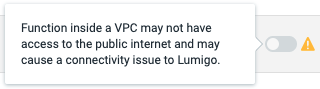
Lumigo now allows you to trace lambdas that are inside a VPC (once implemented the error sign will disappear automatically). In order to implement it you'll have to:
1. Edit your VPC's security group.
2. Add an environment variable to the lambdas inside the VPC. This is done differently in every tracing method.
> 📘 Full Outbound Access
>
> Note that if your VPC has full outbound access (0.0.0.0/0) you don't need to make any change (Lumigo will work regularly).
## Edit the VPC security group
1. Open the [Amazon VPC console](https://console.aws.amazon.com/vpc/).
2. In the left navigation pane, choose **Security Groups**.
3. Check the box next to the security group you wish to associate with your lambdas.
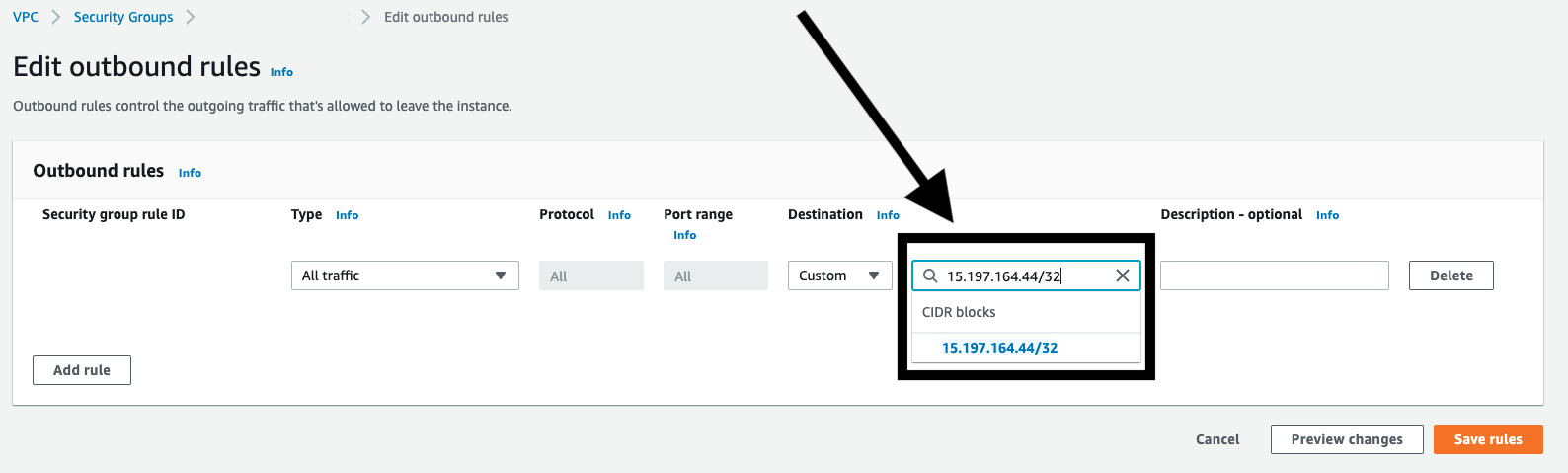
4. Click on "Outbound rules"
5. Select the relevant rule if you have more than one Outbound rule.
6. Click on "Edit Outbound rules".
7. Change the destination IP address to **15.197.164.44/32**
## Add The Environment Variable
There are several ways to add the variable to the environment depending on your chosen tracing method (Auto Tracing / Serverless Framework / Manual Tracing).
## Auto Tracing
Nothing :smiley:. Lumigo will automatically add the environment variable to each lambda that was auto traced.
## Serverless Framework
Add the environment variable to your serverless.yml
```text All Functions
custom:
LUMIGO_TRACER_HOST: ga.lumigo-tracer-edge.golumigo.com
```
```text Specific Function
functions:
myFunction:
LUMIGO_TRACER_HOST: ga.lumigo-tracer-edge.golumigo.com
```
## Manual Tracing
For each lambda that is behind a VPC and you wish to trace you need to:
1. Open the [Amazon Lambda console](https://console.aws.amazon.com/lambda/).
2. In the left navigation pane, choose **Functions**.
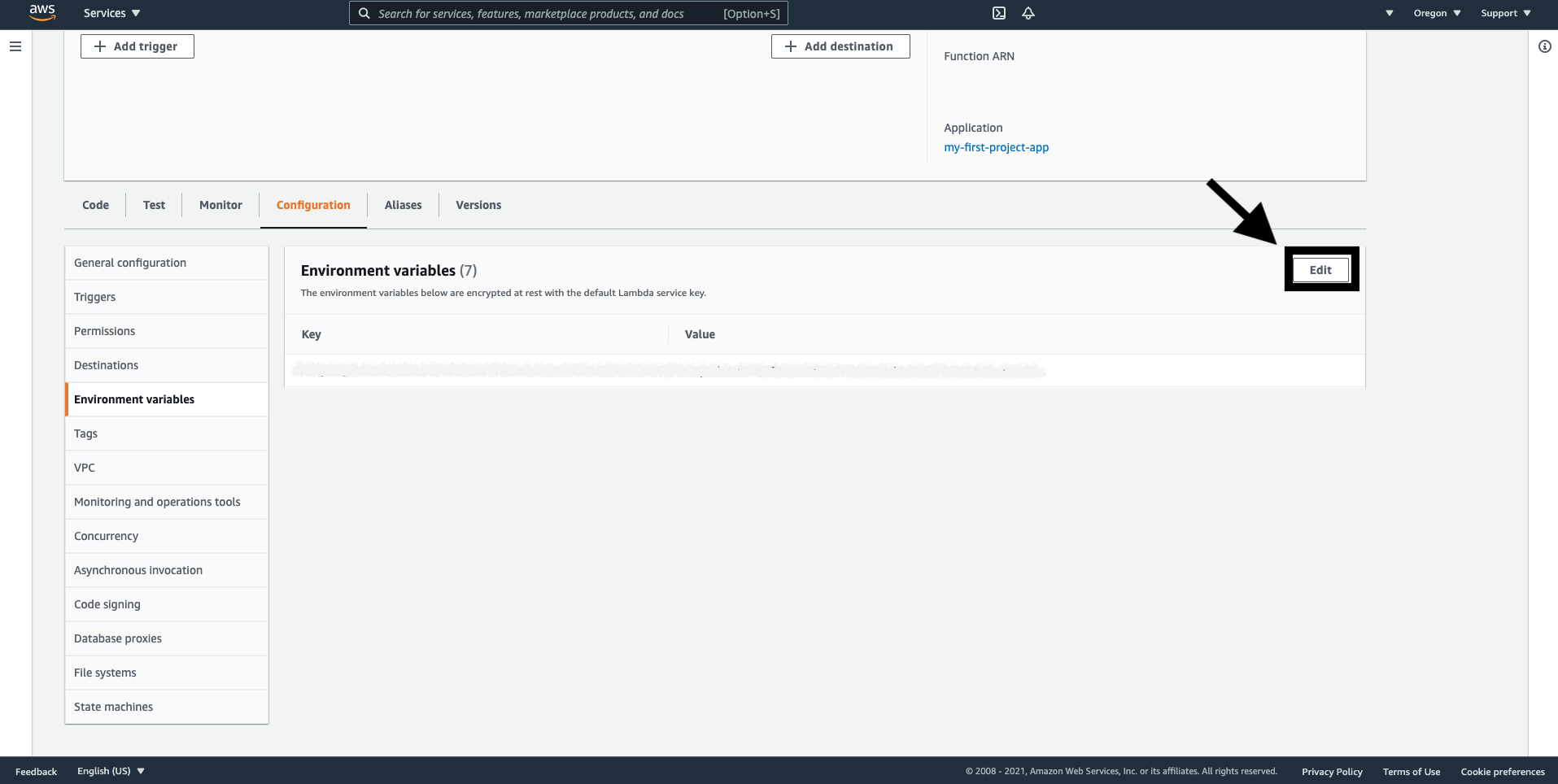
3. Choose the lambda you'd like to start tracing.
4. Click on "Configuration".
5. Click on "Edit"
6. Click "Add environment variable"
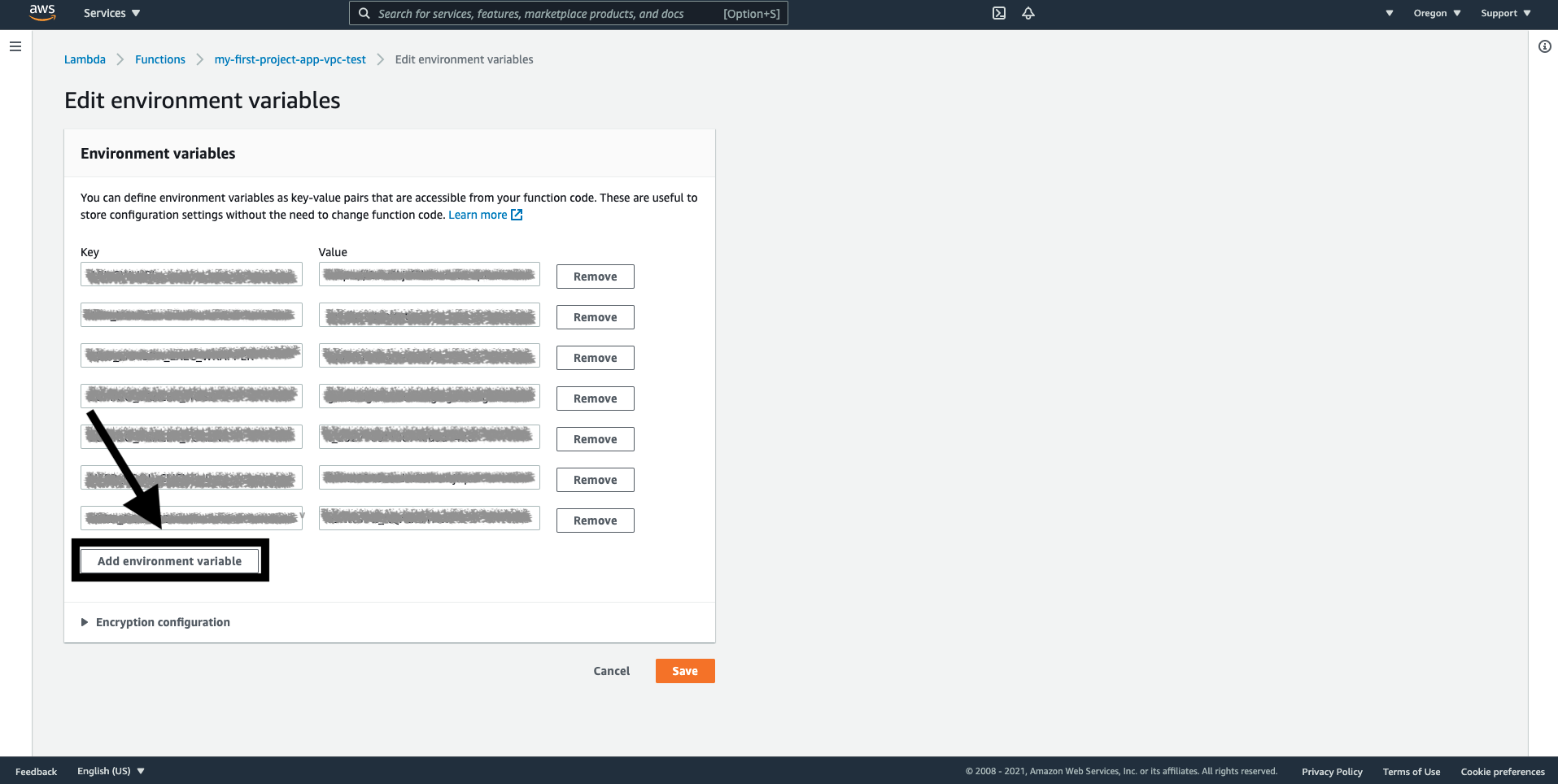
7. Add a new environment variable:
* Key: LUMIGO\_TRACER\_HOST
* Value: ga.lumigo-tracer-edge.golumigo.com
8. Click "Save".